Shopify ecommerce tracking
Here's how to add Plausible Analytics to your Shopify store and track add to cart, checkout, purchases, revenue and more.
Privacy-first analytics for your Shopify store
There are two parts:
- Your Plausible snippet in your theme tracks your storefront: home, collection, product and cart pages.
- A custom pixel in Shopify's Customer events tracks checkout pages and Shopify's built-in shopping events (add to cart, checkout, purchase) with revenue. Shopify doesn't load your theme on checkout and Thank you pages, so the theme snippet can't see them.
Shopify has switched off Additional scripts and checkout.liquid customizations on the Thank you and Order status pages: on 28 August 2025 for Shopify Plus stores and on 26 August 2026 for all other plans. If you had Plausible code there, it no longer runs. Use the custom pixel below instead.
Add the Plausible snippet to your theme
- In your Shopify admin, go to Online Store → Themes.
- Click the ⋯ button next to your current theme and choose Edit code.
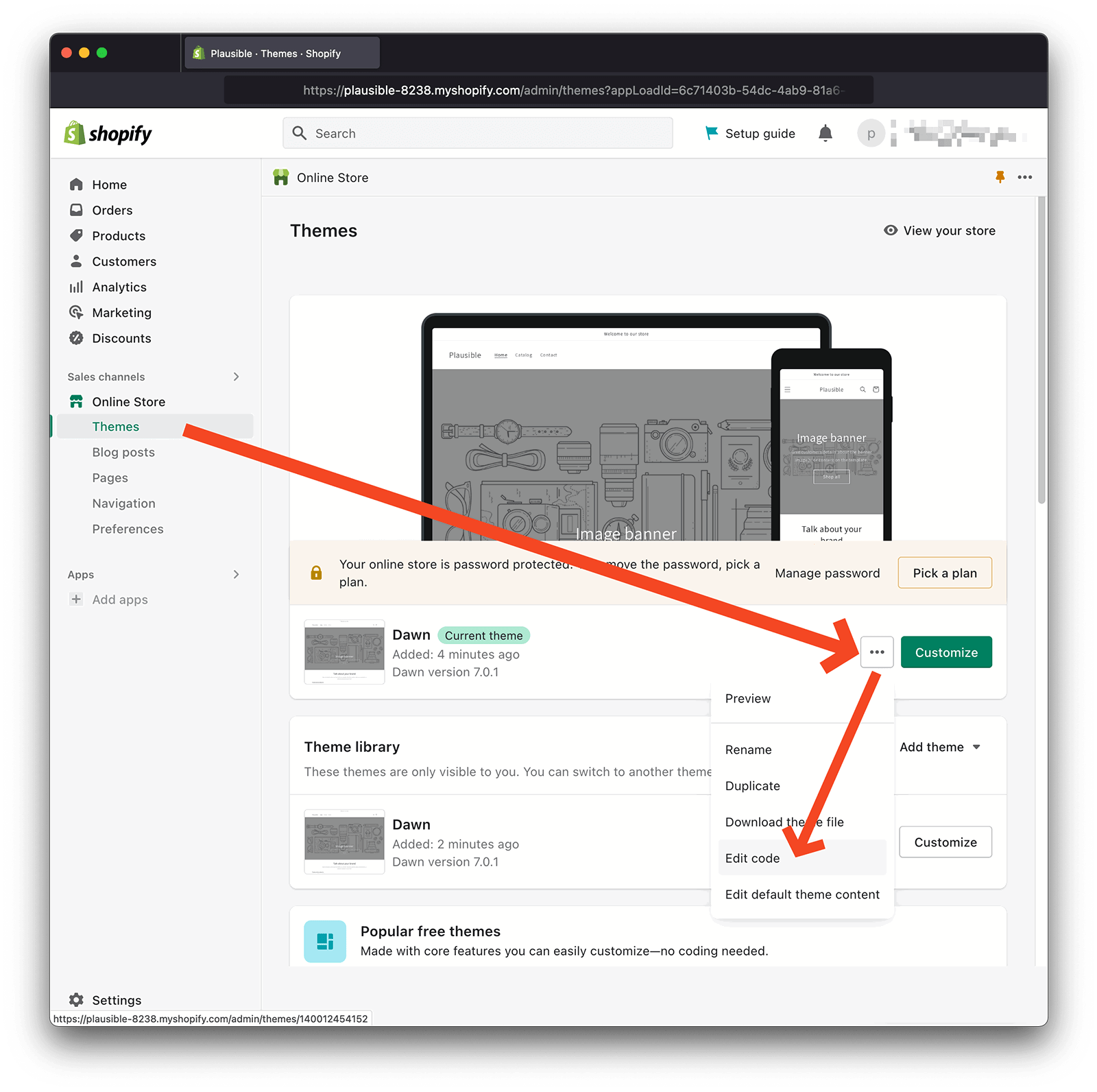
- In the Layout folder, open theme.liquid and paste your Plausible snippet just before the closing
</head>tag. Your snippet is in the Site Installation area of the General section in your site settings. - Click Save.
Add a Plausible custom pixel for checkout and shopping events
- In your Shopify admin, go to Settings → Customer events.
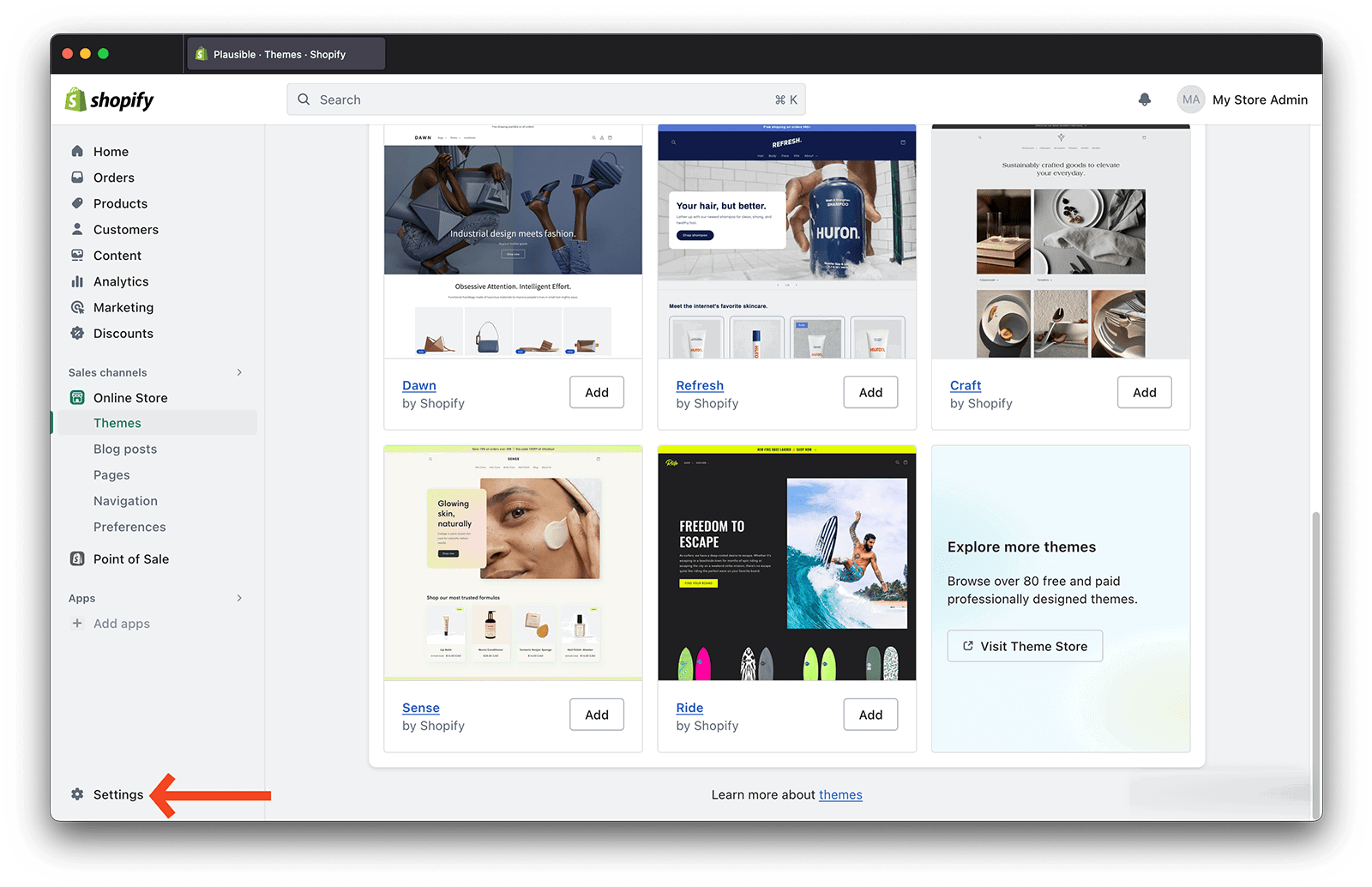
- Click Add custom pixel and name it, e.g. Plausible.
- Choose the Customer privacy settings (see below).
- Paste the code into the Code box: the setup block first, then the blocks for what you want to track.
- Click Save, then Connect.
Choose the pixel's Customer privacy settings
Each custom pixel has a Customer privacy section. By default, Shopify requires Marketing and Analytics permission for new pixels. In regions where Shopify asks for consent (usually the EEA and the UK), the pixel then runs only for visitors who accept your cookie banner. Checkout pageviews and purchases from shoppers who decline or simply ignore the banner won't reach Plausible. Shopify doesn't show the banner again on the checkout or Thank you pages. Your storefront pageviews from the theme snippet aren't affected.
You decide what fits your store and the laws that apply to you:
- Permission: Required. The pixel runs only for visitors who gave the permissions you select. In consent regions, expect Plausible to show only the purchases of shoppers who accepted your banner, which can be far fewer than in Shopify.
- Permission: Not required. Shopify loads the pixel for every visitor.
Plausible doesn't use cookies and doesn't collect personal data. The events in this guide send no customer, order or checkout IDs. See our data policy for what Plausible collects.
Snippet options for the custom pixel
Paste the Setup block first. Everything after it is optional: copy the blocks you want, one after another.
Setup block [Required]
Replace https://plausible.io/js/pa-XXXXX.js with the script URL from your Plausible snippet (Site Settings → General → Site Installation). It's the same URL as in your theme snippet.
// Load your Plausible script inside the pixel
const script = document.createElement('script');
script.async = true;
script.src = 'https://plausible.io/js/pa-XXXXX.js'; // <- your own script URL
document.head.appendChild(script);

window.plausible = window.plausible || function () { (plausible.q = plausible.q || []).push(arguments) };
plausible.init = plausible.init || function (i) { plausible.o = i || {} };

// The pixel runs in a sandbox, so it can't see the shopper's real page.
// Shopify passes that page with every event; send() forwards it to Plausible.
let pageReferrer = null;

plausible.init({
  // Don't send a pageview for the sandbox itself. Your theme snippet already
  // tracks storefront pages, and checkout pageviews are sent below.
  autoCapturePageviews: false,
  transformRequest: (payload) => {
    payload.r = pageReferrer;
    return payload;
  }
});

function send(eventName, event, options = {}) {
  const loc = event.context.document.location;
  pageReferrer = event.context.document.referrer || null;

  // Replace the per-checkout ID in checkout URLs so all checkouts share the same page paths
  const path = loc.pathname.replace(/\/checkouts\/([^/]+)\/[^/]+/, '/checkouts/$1/token');

  plausible(eventName, { ...options, url: loc.origin + path + loc.search });
}
Track pageviews on checkout pages
This records checkout steps as pages, e.g.:
/checkouts/cn/token/en-us/checkouts/cn/token/en-us/thank-you
The exact steps depend on your checkout. Shopify adds a language segment such as /en-us when it shows the checkout in a specific locale, and one-page checkouts have no separate review or processing step.
Shopify's real URLs contain a unique ID for each checkout. The setup block replaces it with token, so you get one row per checkout step instead of one per checkout.
// Track pageviews on checkout pages
analytics.subscribe('page_viewed', (event) => {
  // page_viewed also fires on storefront pages, which your theme snippet already
  // tracks. Only send checkout pages here to avoid counting pageviews twice.
  if (event.context.document.location.pathname.includes('/checkouts/')) {
    send('pageview', event);
  }
});
To see all checkout visits, or all order confirmations, as one group, click Filter at the top of your dashboard, choose Page and filter by "contains" checkouts or "contains" thank-you. You'll see which sources, landing pages, locations and devices led to checkouts and orders. To keep these in your dashboard, add them as pageview goals, e.g. /checkouts/**/thank-you, which matches the Thank you page with or without a language segment.
Track completed checkouts (purchases)
Send a Purchase event with the amount the customer paid.
// Track completed checkouts
analytics.subscribe('checkout_completed', (event) => {
  const checkout = event.data.checkout;
  const total = checkout.totalPrice;

  if (total && total.amount != null && total.currencyCode) {
    send('Purchase', event, {
      revenue: { amount: total.amount, currency: total.currencyCode.toUpperCase() }
    });
  } else {
    send('Purchase', event); // still count the purchase, without an amount
  }
});
Then set up a revenue goal called Purchase in your reporting currency.
Good to know:
- Shopify sends this event once per checkout, usually on the Thank you page. If you use post-purchase upsells, it fires on the first upsell page instead and not again on the Thank you page.
- The amount is the checkout total as Shopify reports it (including taxes, duties and discounts), in the currency the customer paid in. Plausible converts it to your goal's currency.
- Don't add order numbers, emails or customer details as properties. Plausible doesn't need them to report revenue.
Track started checkouts
Send a Begin Checkout event when a shopper enters checkout, with the cart value.
// Track started checkouts
analytics.subscribe('checkout_started', (event) => {
  const total = event.data.checkout.totalPrice;

  send('Begin Checkout', event, total && total.currencyCode ? {
    revenue: { amount: total.amount, currency: total.currencyCode.toUpperCase() }
  } : {});
});
Then set up a revenue goal called Begin Checkout. If you only want to count checkouts, use a plain custom event goal instead.
This amount is the value of the cart when checkout started, not money received. Only Purchase shows actual revenue. Shopify fires this event every time a shopper enters checkout, so one shopper can trigger it more than once. Use Uniques to count shoppers who started a checkout.
Track payment info added during checkout
Send an Add Payment Info event when a shopper submits payment details.
// Track payment info added during checkout
analytics.subscribe('payment_info_submitted', (event) => {
  const total = event.data.checkout.totalPrice;

  send('Add Payment Info', event, total && total.currencyCode ? {
    revenue: { amount: total.amount, currency: total.currencyCode.toUpperCase() }
  } : {});
});
Then set up a revenue goal (or a plain custom event goal) called Add Payment Info. As with Begin Checkout, the amount is the cart value, not revenue.
Track "Add to Cart"
Send an Add to Cart event with:
productTitle(custom property): title of the product addedquantity(custom property): number of items added- the cart line value: price × quantity
// Track "Add to Cart"
analytics.subscribe('product_added_to_cart', (event) => {
  const line = event.data.cartLine;
  if (!line) return;

  send('Add to Cart', event, {
    revenue: {
      amount: line.cost.totalAmount.amount,
      currency: line.cost.totalAmount.currencyCode.toUpperCase()
    },
    props: {
      productTitle: line.merchandise.product.title,
      quantity: line.quantity
    }
  });
});
Then:
- Set up a revenue goal called
Add to Cart, or a plain custom event goal if you don't want the cart value. - Set up two custom properties:
productTitleandquantity.
Track site searches
Send a Search event with a searchQuery custom property containing the search text.
// Track site searches
analytics.subscribe('search_submitted', (event) => {
  send('Search', event, {
    props: { searchQuery: event.data.searchResult.query }
  });
});
Then:
- Set up a custom event goal called
Search. - Set up a custom property called
searchQuery.
Shoppers can type anything into a search box, including email addresses or order numbers. You're responsible for not sending personal data to Plausible. If that's a concern, leave out searchQuery and only count searches.
Customize your own tracking pixel
To track something not covered above, combine Shopify's events with the send helper from the setup block.
Shopify: analytics.subscribe(eventName, callback)
It's built into every custom pixel. The callback receives an event with all the details for that event. See the full list of Shopify's standard events and the fields each one includes.
Plausible: send(eventName, event, options)
It's defined in the setup block and calls the plausible function with the shopper's real page URL. Always use send rather than calling plausible directly in the pixel. Otherwise the event gets the sandbox URL instead of the page where it happened. Options:
revenue:{ amount, currency }attributes a monetary value to the event. Use a three-letter uppercase currency code (EUR, noteur). Revenue is only recorded for goals set up as revenue goals.props: any key/value pairs. Each key becomes a custom property. Don't send personal data.
Check that it works
- Place a test order. Shopify's test payments work.
- Your Plausible dashboard should show:
- pageviews for
/checkouts/…/token/… - one Purchase with the order total (once you've added the goal)
- pageviews for
- If nothing arrives from checkout, check that the pixel is Connected and review its Customer privacy settings. With Permission: Required, Shopify won't load the pixel if you decline the cookie banner.
Known limits
- Purchases aren't tracked if the Thank you (or first upsell) page never loads in the shopper's browser, or if the pixel isn't allowed to run because of its privacy settings. Plausible's Purchase count can be lower than Shopify's order count.
- Refunds, cancellations and orders created outside the online store checkout (e.g. POS, draft orders paid later) aren't reflected.
- Time on page and scroll depth for checkout pages may be inaccurate, because they're measured from inside Shopify's sandbox.
How to track form submissions and button clicks on Shopify
To count all form submissions on your storefront, turn on Form submissions tracking in your site settings. No code needed. To track one specific form or button under its own goal name, use the steps below.
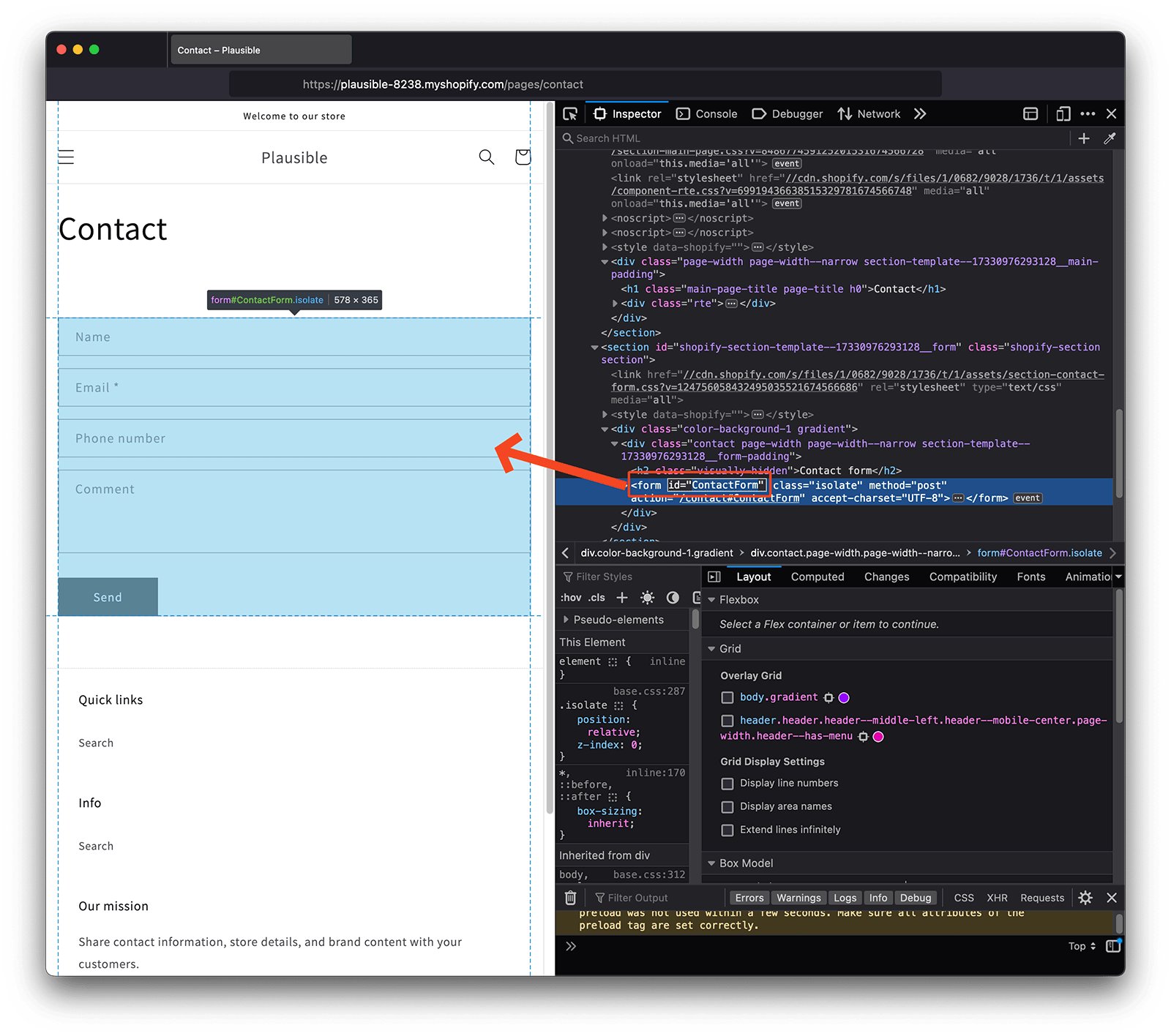
1. Find the ID attribute of the form or button you want to track
Your form or button usually has an ID attribute. To find it, select the element (the form itself, not just its "Submit" button) and click the settings gear.
2. Trigger custom events with JavaScript on your site
Keep your Plausible snippet installed and add the code below alongside it in the <head> of your theme, the same way you added the snippet.
- Change
elementIdto your element's ID (ContactFormin this example). - Change
classestoplausible-event-name=Your+Goal+Name. The goal name is up to you; it's how the conversions appear in your dashboard.
Use a + sign for spaces in goal names. For example, plausible-event-name=Form+Submit shows as Form Submit in your dashboard.
<script>
    var toTag = [
        {
            elementId: 'ContactForm',
            classes: 'plausible-event-name=Form+Submit'
        }
    ]

    document.addEventListener('DOMContentLoaded', function (_e) {
        toTag.forEach(function (tagObject) {
            var element = document.getElementById(tagObject.elementId)
            tagObject.classes.split(' ').forEach(function (className) {
                if (element) { element.classList.add(className) }
            })
        })
    })
</script>
Click Save.
3. Create a custom event goal in your Plausible account
Custom events only show up in your dashboard once you've added a matching goal. In your website's settings, open Goals, click + Add goal, choose Custom event and enter the event name exactly. In this example, that's Form Submit (the + becomes a space). Click Add goal.
4. Your goal is now tracking
Goals are listed at the bottom of your dashboard. A goal appears once it has been completed at least once.
How to trigger multiple custom events on the same page
Add all elements to the same toTag list, and only include elements that exist on your site:
<script>
    var toTag = [
        {
            elementId: 'ContactForm',
            classes: 'plausible-event-name=Form+Submit'
        },
        {
            elementId: 'button-ID',
            classes: 'plausible-event-name=Button+Click'
        }
    ]

    document.addEventListener('DOMContentLoaded', function (_e) {
        toTag.forEach(function (tagObject) {
            var element = document.getElementById(tagObject.elementId)
            tagObject.classes.split(' ').forEach(function (className) {
                if (element) { element.classList.add(className) }
            })
        })
    })
</script>
What's next?
- Create goals in your Plausible site settings to match the custom events you set up. They won't appear in your dashboard until you do
- Learn more about revenue tracking to see revenue per source and campaign
- Build a funnel from product page to checkout to order confirmation to find where visitors drop off
- Explore user journeys to see the paths shoppers actually take before and after a purchase
- Invite your team so colleagues can access the dashboard directly